2D normal map editor · sprites
Normal maps for pixel art and painted sprites.
Drawn art already has lighting decisions in it. This tool builds a surface from the outline, then lets you paint the rest: an arm in front of a body, a flat wall, a fold that is only ink.
- Platform
- Windows and Linux. Steam Deck runs the Windows version through Proton. macOS is planned.
- Engines
- Unity · Godot 4 · Unreal Engine 5 · OpenGL · DirectX
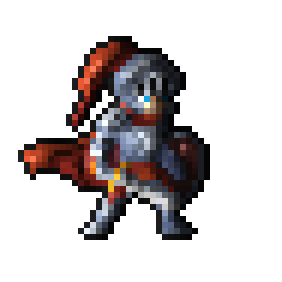
A real export, lit here with one light. Move your pointer to drag it.
 Orbit
OrbitThe same export, lit from every side. Only the light direction changes.
In motion
The same map, under a moving light
Height-from-brightness maps often look stamped on. This one has volume. The body rounds, and the arm sits in front of the torso.
What it does
Sprite workPainted lighting stays in the colour
Line detection uses colour, so a dark wash is not read as an inked fold. Edges are found without blurring the sprite.
Sharp at the sprite's own size
A 32×32 sprite exports as a 32×32 normal map. The pixels stay hard.
A preview you can light
Drag lights across the artwork. Switch between art, lit, normal, height, AO, spec, and split before you export.
Several sprites, each its own object
Import them as layers. Each is solved separately, with its own hints and settings, then stacked. A prop in front of a character is two silhouettes, not one asked to invent a relationship.
Height, AO, and specular from the same solve
Inspect them as greyscale views. Optionally fold them into the lit preview. Export them beside the normal map. Unity 2D has no spec slot, so AO and spec pack into one Mask Map: red is spec, green is AO.
Consistent animation frames
Load every frame together. Settings stay shared so the frames agree, hints stay per frame, and one export writes the set.
Photoshop and Aseprite import
Open a PSD or .aseprite file and assign each layer as artwork, as a hint, or skip it. Edit the file and re-read it instead of tracing the same masks again.
A batch tool in the install
Dial in the look on one sprite, then apply it to a folder of two hundred with tnmap, the command-line tool installed beside the editor. Same solver, same presets, same export targets.
The usual approach
Brightness is a poor stand-in for height
On a photo of stone, dark really can mean recessed. On a drawing, dark is often just paint. A generator that cannot tell those apart will carve your shading into the mesh and ignore the shape you drew.
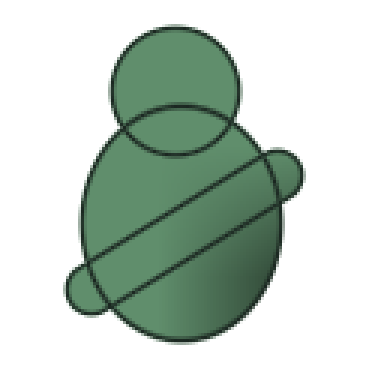 The artworkFlat colour, drawn ink lines, and a soft shadow wash painted down the lower right.
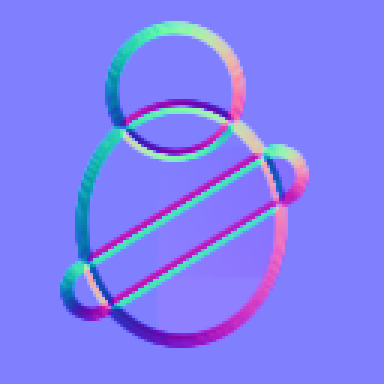 Brightness as heightEvery ink line becomes a ridge. The interior stays flat, because flat colour has no gradient to read.
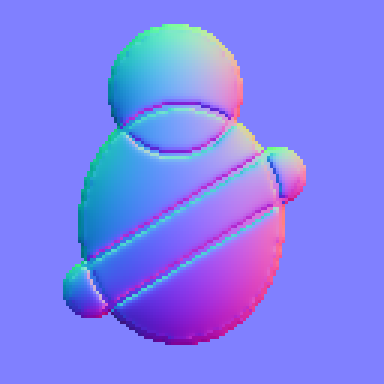 Solved from the silhouetteThe body and head read as volume. The ink lines read as folds, not as pipes.
Hints
Paint the overlaps the outline gets wrong
An overlapping arm looks like a crease in one surface. Paint it with In front and that edge stops folding the torso.
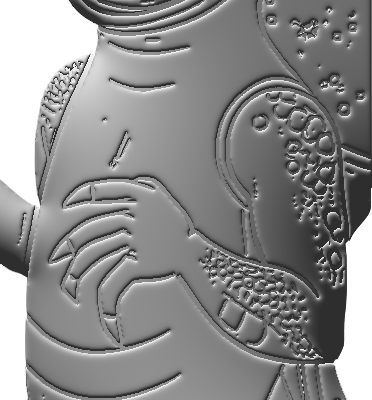 Without the hintThe arm's edge creases the body, so the limb and the torso merge into one surface.
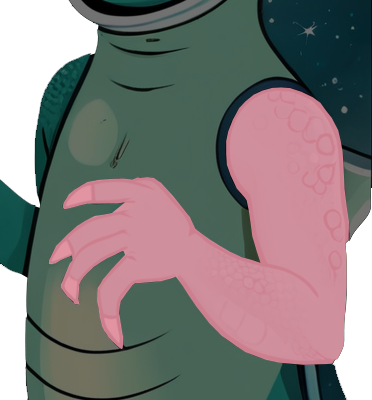 What you paintThe arm, filled with In front. One region; nothing else about the artwork changes.
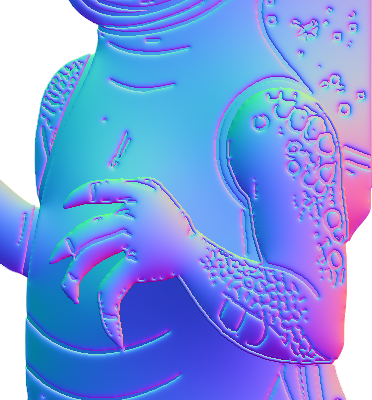 The map you getThe arm rounds as a limb. The body continues behind it instead of folding at the arm's edge.
Photoshop & Aseprite
Bring in the layers you already have
A hint has to match the artwork exactly. If those shapes already live in Photoshop or Aseprite, import the .psd or .aseprite file and assign each layer: as a hint, as the base artwork, or as its own object on the canvas.
Selections, masks, and shapes you already painted can become hints. Edit the file, come back, and re-read it.
A layer’s own shape is usually the hint. Naming it after the hint it feeds fills the dialog in for you. Anything left unassigned stays artwork. See Importing artwork.
Compatibility
Export that matches your engine
Green-up versus green-down is a single bit, and the wrong one makes every bump look like a dent. Choose the engine on export. The import settings a PNG cannot carry travel with the file.
Unity
Y+Set Texture Type to Normal Map and leave Flip Green Channel off. AO and spec pack into a Mask Map (_MaskTex): red is spec, green is AO.
Godot 4
Y+Leave Normal Map Invert Y off. Godot discards the blue channel, and exports stay valid without it.
Unreal Engine 5
Y-Set Texture Group to WorldNormalMap. The flip is already in the file, so leave Flip Green Channel off.
OpenGL
Y+Raw Y+, matching Blender and most offline renderers.
DirectX
Y-Raw Y-, matching 3ds Max and Source 2.
Not sure which your pipeline wants? Export a calibration target once and compare it against the reference on the Exporting page.
Support
When something looks wrong
The documentation covers every tool and setting. Start there; most odd results are a control doing what it says.
Documentation
Start here. Every tool, every setting, the batch tool, and a troubleshooting page for results that look wrong.
support@goathollowgames.com. A sprite that reproduces the problem, or the project file, gets a much faster answer than a description. If the window went blank, attach last-crash.txt from the folder named in Help ▸ About.
Steam community
Discussions on the store page. Best place for workflow questions and for asking after a feature.